

When we take over a new WordPress site, the first thing we do is point a security scanner at it. Not because we expect drama, but because almost every site has at least one easy-fix exposure that nobody noticed. The tool we use is free, runs in 30 seconds, and you can use it on your own site right now: the 365i WordPress Scanner.
365i is our sister company, the WordPress hosting specialist arm of the same group. They built the scanner as a free public tool because they kept fielding the same question from prospective customers: "is my current WordPress site OK?" The scanner answers that question in plain English, with a letter grade and a list of specific fixes. No signup. No plugin install. No credentials handed over. It just looks at what your site shows the public internet and reports what an attacker would see.
This is a walkthrough of the eight checks it runs, why each one matters, and how to fix every finding. If you've never audited your site, run the scanner first and read along.
How to Run the Scan
Open the scanner page, paste your full site URL (including the https://), and click Scan. Results take around 30 seconds. You get a letter grade at the top, and below it the eight individual checks with a status for each. Anything red is urgent. Anything amber is a same-week fix. Anything green is fine to leave alone.
365i describe the scanner's approach as "checking what the front door looks like from the pavement", which is the right mental model. It's non-invasive: it makes the same kinds of HTTP requests your browser would make when visiting the site, parses the responses, and reports findings. It does not attempt logins, does not try to exploit anything, and does not need credentials. Run it as often as you like.
How the Grade Is Calculated
The grading scale is straightforward and based on critical issue counts:
- A. No critical issues or warnings
- B. Minor warnings only
- C. One critical issue exists
- D. Two critical issues
- F. Three or more critical issues
One important caveat: the grade is based on what the scanner can see from outside your site, so internal-only protections (like a firewall plugin that blocks XML-RPC at the application layer rather than the server layer) might not be visible. If a check is flagged but you've already mitigated it inside WordPress, that's worth noting. Don't blindly chase a green badge if the underlying risk is already covered by something the external scan can't see.
Check 1: Login Protection
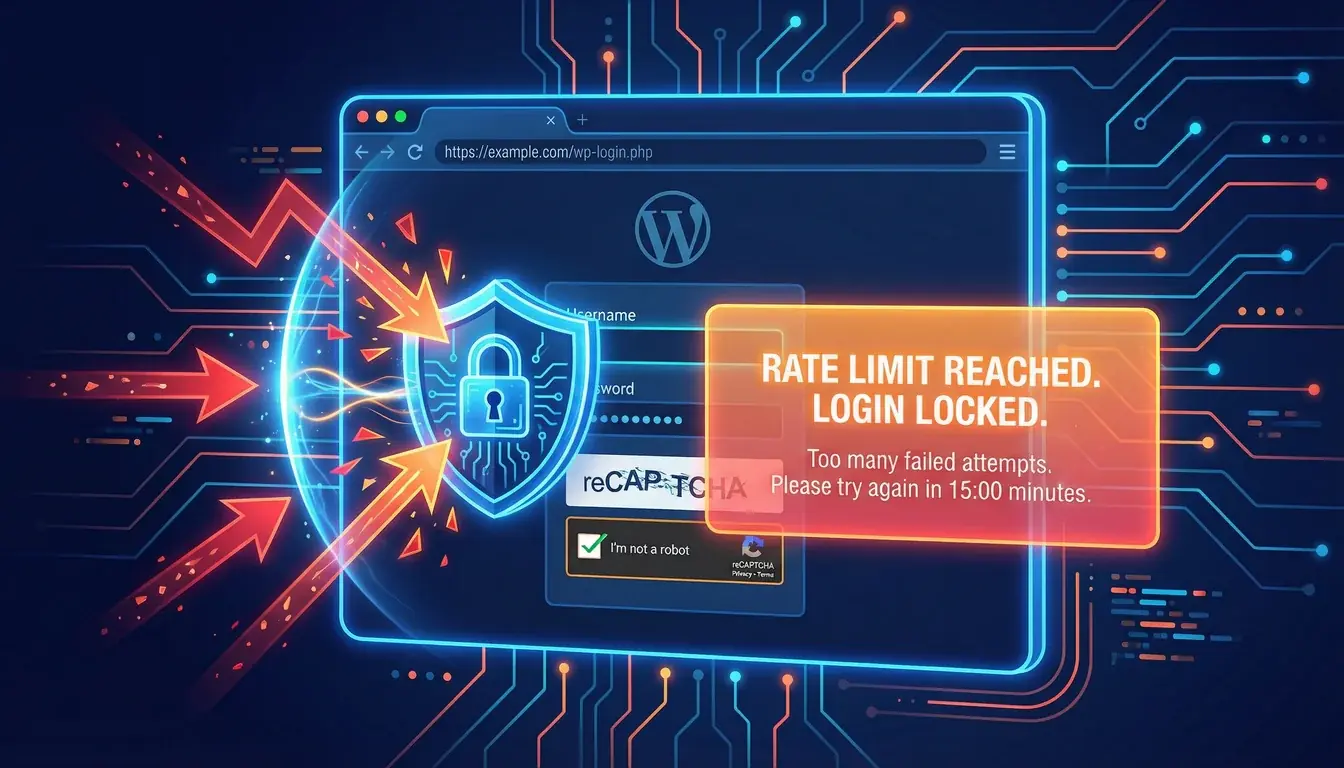
Every WordPress site has a login page at /wp-login.php, and bots hammer it constantly. Wordfence reported blocking 55 billion password attack attempts in 2024 alone. The scanner checks whether your login page has any defences (rate limiting, CAPTCHA, lockouts) or whether it's just open to brute force.
If you fail this check, install one of the security plugins we recommend in our WordPress security checklist (Wordfence, Solid Security, or Sucuri) and enable login attempt limiting. Five failures, hour-long lockout. That alone ends the brute force problem.
Check 2: XML-RPC Status
XML-RPC is a legacy WordPress feature that lets external apps post to your site. It's been around since the days when blog editors weren't browser-based, and it's almost always abandoned now. The problem: attackers love it. A single XML-RPC request can attempt thousands of username/password combinations in one shot, bypassing the login rate limiting your security plugin so carefully set up. It's also a favourite for amplified DDoS attacks where a small request triggers a large response.
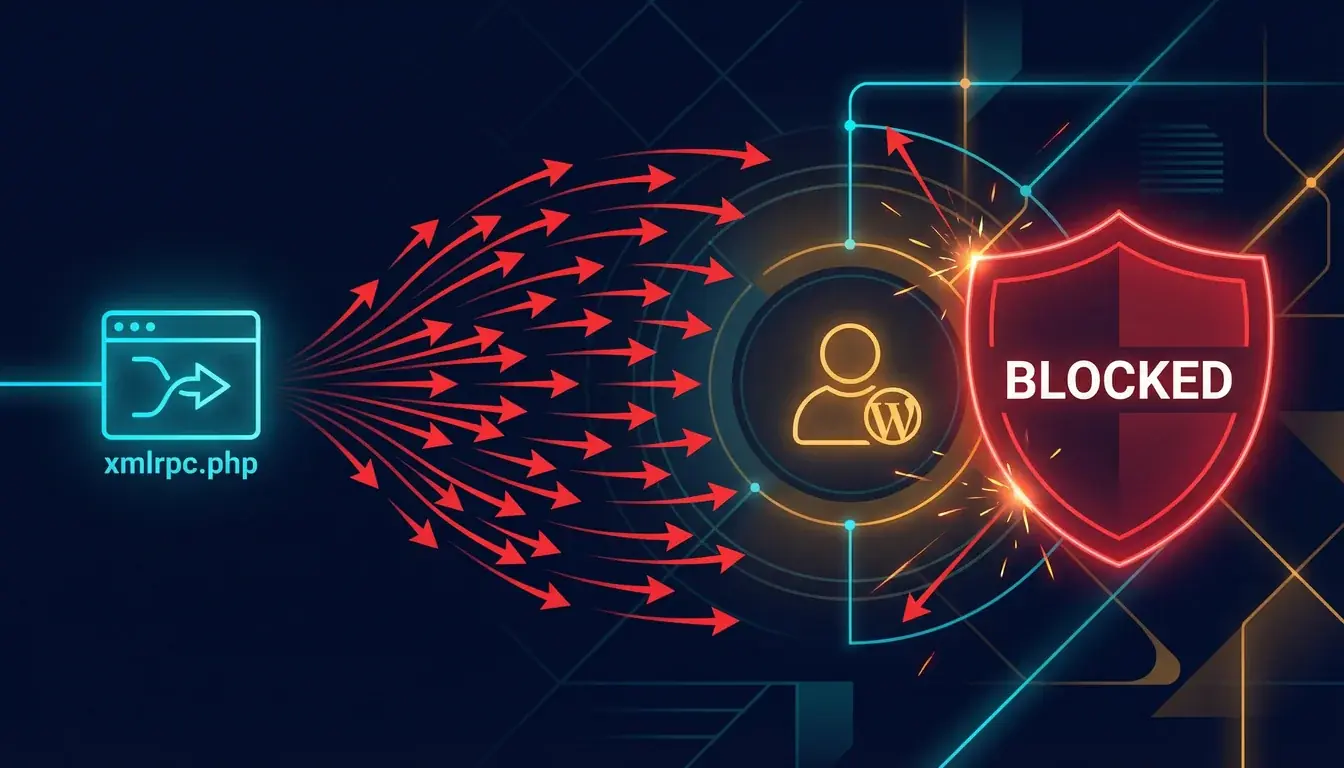
If the scanner flags XML-RPC as enabled, disable it. Every decent security plugin has a one-tick option. If you genuinely need it (the official WordPress mobile apps and some Jetpack features still use it), keep it enabled just for those specific cases via a plugin like Disable XML-RPC, which lets you whitelist methods rather than the whole endpoint.
Check 3: REST API User Enumeration
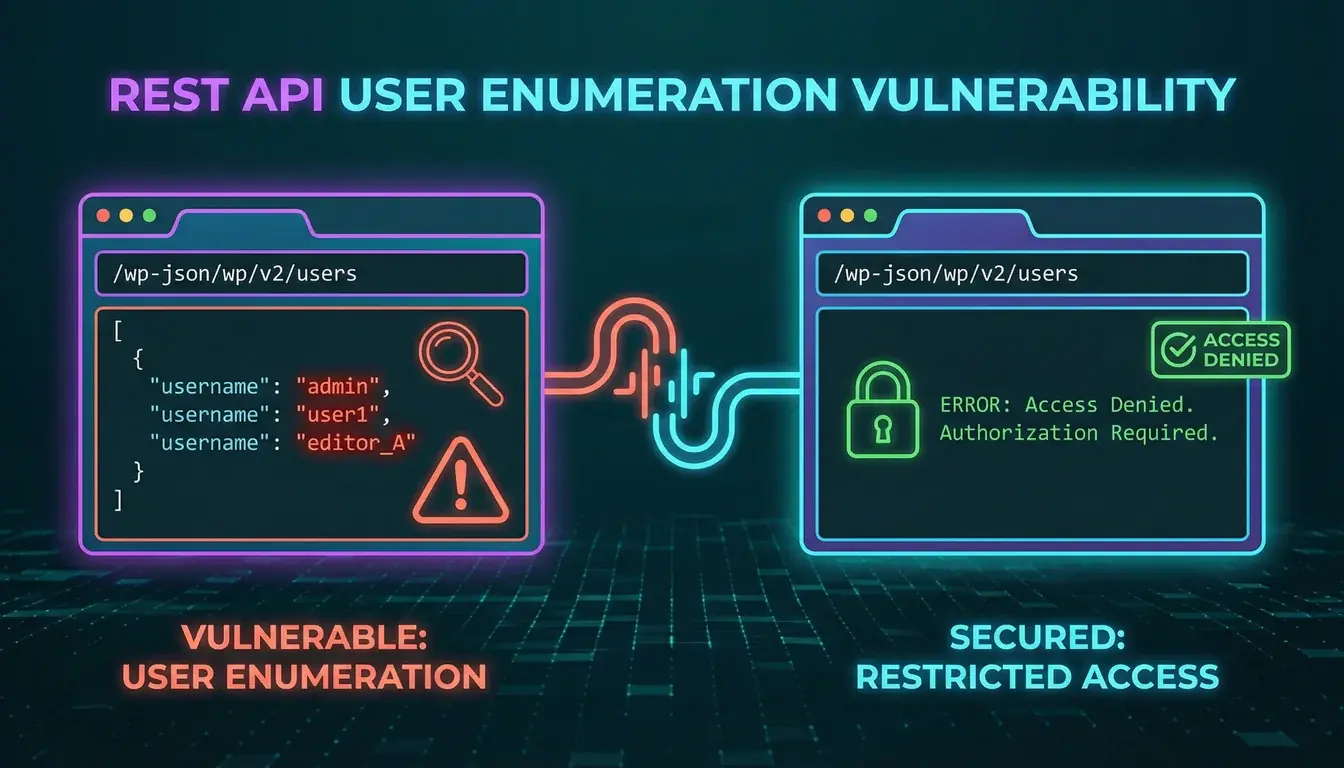
WordPress's REST API includes an endpoint at /wp-json/wp/v2/users that lists every user with published content. By default it works without authentication. Visit it and you get a JSON dump of usernames, which is half the battle for any brute force attempt.
The fix is to block unauthenticated access to that endpoint. Wordfence and Solid Security both do this with a single setting. If you're rolling your own, drop a small functions.php snippet that returns 401 for unauthenticated requests to /wp-json/wp/v2/users. Run the scanner again and the check should turn green.
Check 4: WordPress Version Exposure
WordPress prints its version number into the page source by default, into the RSS feed generator output, and sometimes into readme.html. Attackers scan for known-vulnerable versions because it's the cheapest way to find easy targets. If you're on a slightly old version, leaking the number tells them exactly which exploit to try.
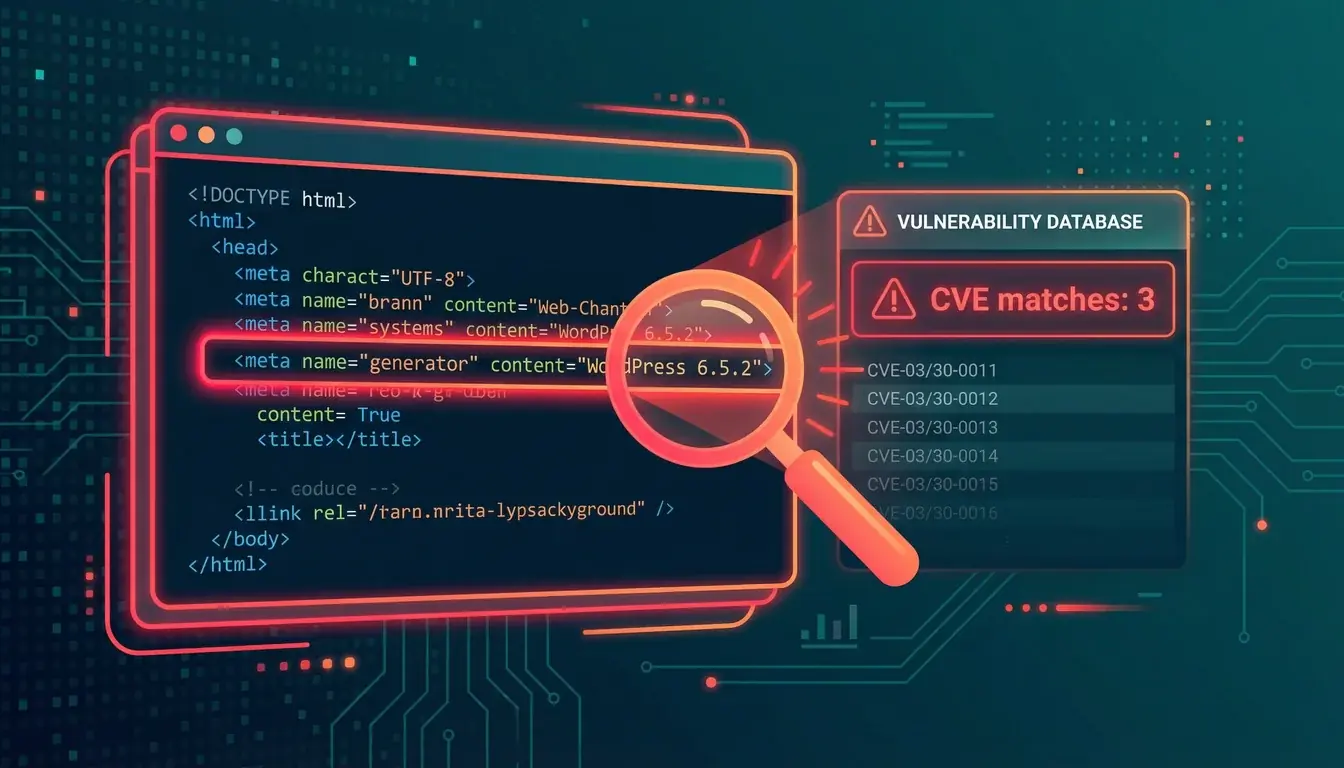
The fixes are small but specific. Remove the meta generator tag with remove_action('wp_head', 'wp_generator'); in your theme's functions.php. Hide the version from the RSS generator with add_filter('the_generator', '__return_empty_string');. Most security plugins do both with a single tick. Together they hide the version from casual probes.
Check 5: Default Files Exposure
WordPress ships with two files in the root directory that should never be public on a live site: readme.html and license.txt. The readme exposes your version number (yes, again), and both files are easy ways for attackers to confirm a target is running WordPress.
Delete them or block public access via .htaccess. They serve no purpose on a production site. The scanner checks for both and tells you exactly which (if either) is exposed.
Check 6: PHP Debug Mode
WordPress has a debug mode controlled by the WP_DEBUG constant in wp-config.php. When it's on, PHP errors are printed directly into the page output. Sounds useful for development. Disastrous on a live site, because it exposes file paths, database table names, plugin internals, and sometimes credentials.
Open wp-config.php and confirm define('WP_DEBUG', false);. If you need debug logging in production, set WP_DEBUG_LOG to true and WP_DEBUG_DISPLAY to false. That logs errors to a file without showing them to visitors.
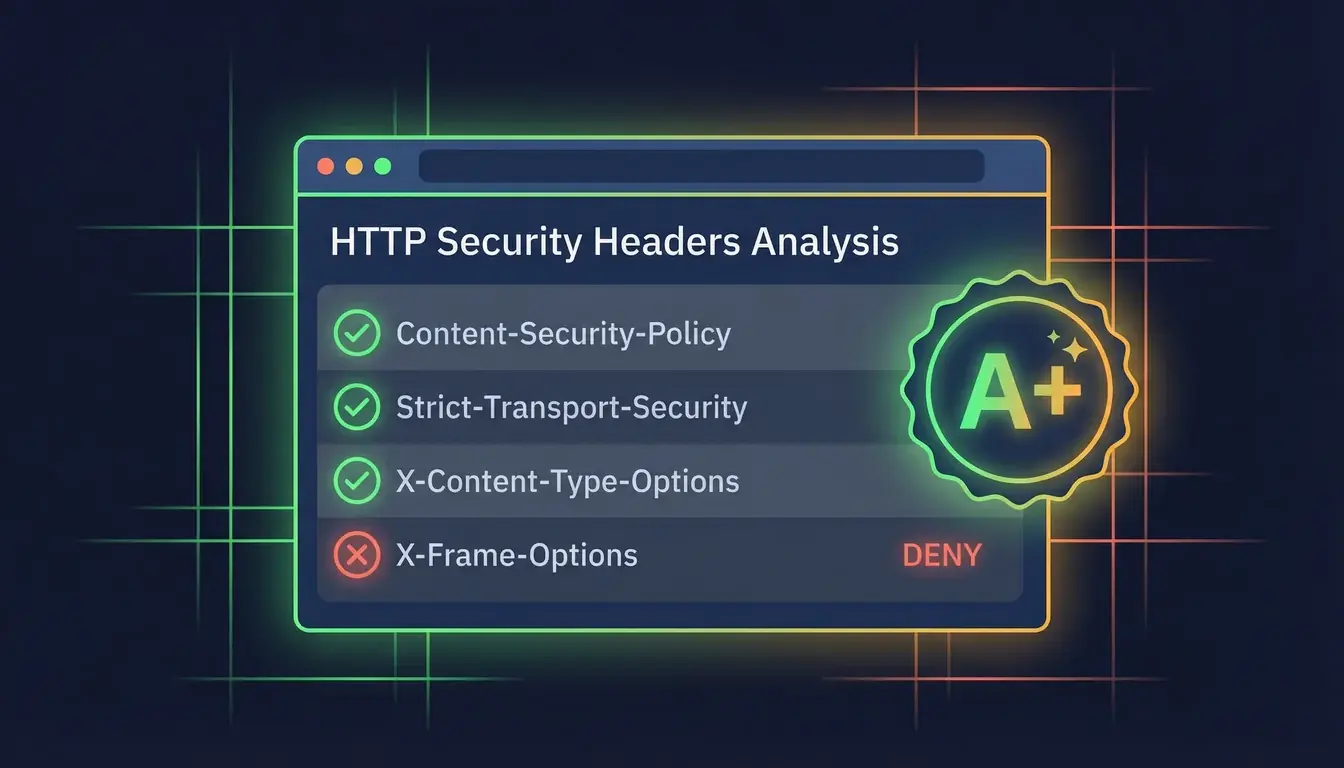
Check 7: Security Headers
HTTP security headers are server-level instructions that tell browsers how to handle your content securely. They're invisible to visitors, they don't change anything about how the site looks, but they shut down whole categories of attack. The scanner checks for the four that matter most:
- Content-Security-Policy tells the browser which scripts and resources it's allowed to load. Stops most XSS attacks dead.
- X-Frame-Options prevents your site being loaded inside an iframe on someone else's site. Stops clickjacking.
- Strict-Transport-Security (HSTS) tells browsers to always use HTTPS for your domain, even if a user types
http://. Stops downgrade attacks. - X-Content-Type-Options stops browsers guessing file types and treating an uploaded image as JavaScript.
These are added at the server level (NGINX or Apache config), not in WordPress itself. Your host's support can usually add them for you, or you can drop them into .htaccess on Apache. The 365i HTTP Header Inspector shows you the full header response from any URL, useful for confirming the headers actually arrive after you add them.
Check 8: Plugin Version Detection
The final check looks at any plugin assets your site loads (CSS and JS files), extracts the version numbers from them, and cross-references them against the official WordPress.org plugin directory. If anything's behind the latest version, the scanner flags it. Premium plugins that aren't on the directory don't show up here, which is a known limitation; the scanner can only see what it can match.
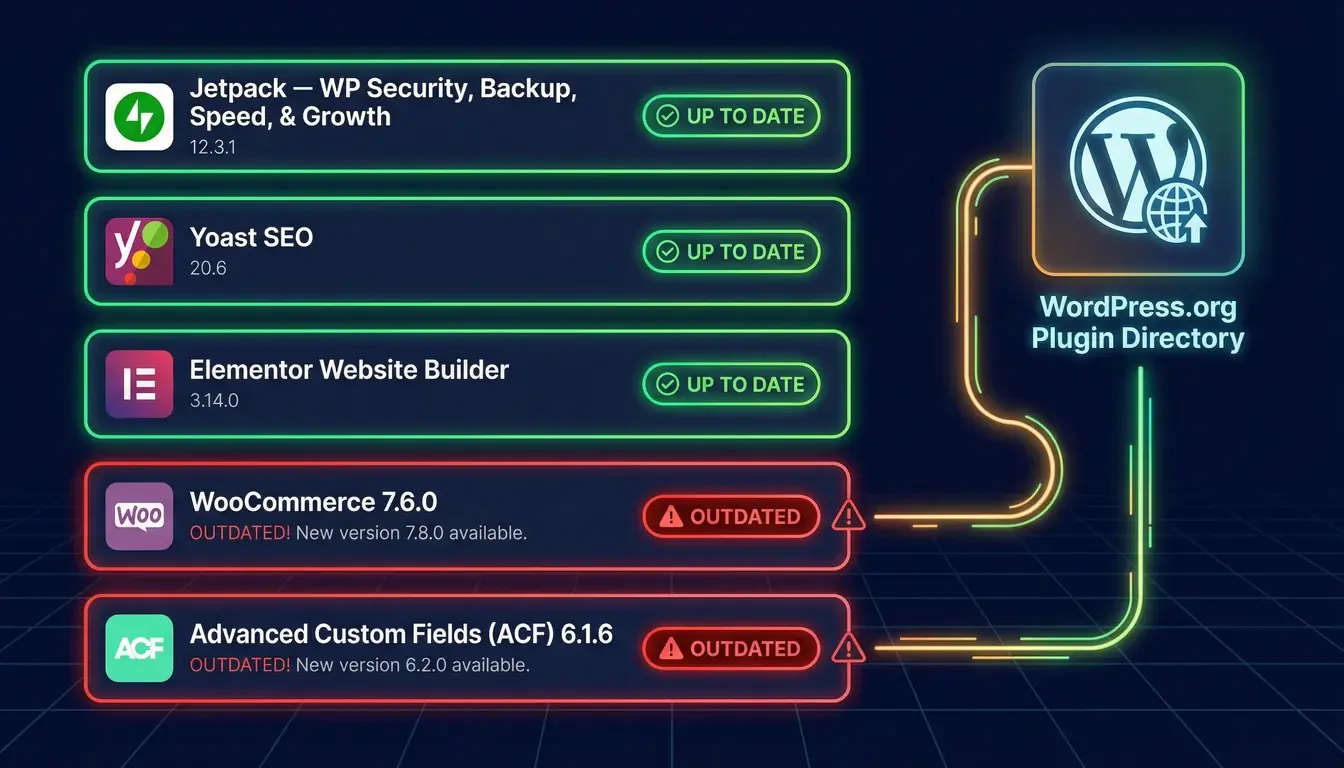
This is the check that catches the slow plugin rot. Patchstack's 2025 State of WordPress Security report found that 96% of WordPress vulnerabilities come from plugins, and the fix is almost always already available. Most failures here are simply "you haven't logged in and clicked Update Plugins for a while". Do that, run the scan again, and the check turns green. If a plugin hasn't seen an update from its developer in 12+ months, treat that as a red flag and find an alternative; we cover the full reasoning in our WordPress security checklist.
Why We Recommend This Tool to Clients
There are dozens of WordPress security scanners. We default to the 365i one for three reasons:
- It's actually free, with no hidden upsell. No email capture, no "create an account to see results", no premium tier nag. You get the full report and the full fix list immediately.
- It tests what attackers actually see. Outside-in scanning catches things that inside-out scanners (running as plugins inside WordPress) sometimes miss. If a malicious plugin has hidden itself from internal scans, an external scan still sees the symptoms.
- It maps cleanly to fixable items. Each finding comes with a clear "what to do" description, not a wall of CVE numbers and CVSS scores you need a security background to interpret.
Run it before any major change to your site, run it after, and run it once a quarter as a routine health check. If you ever see a grade drop, treat it as a same-day investigation. That's exactly the cadence we use on our own clients. The same monthly discipline applies to the content layer too. We covered a real example on a client whose Google Search Console rejected 220 of 272 pages after a year of AI-scaled blog posts, with the recovery playbook we are now running.
Frequently Asked Questions
Is the 365i WordPress Scanner really free?
Yes. No signup, no email capture, no paid tier. Open the page, paste your URL, get the full report. 365i built it as a public tool to give site owners an honest answer to "is my WordPress site OK?".
What does the scanner actually check?
Eight security exposures: login protection, XML-RPC status, REST API user enumeration, WordPress version leakage, default file accessibility, PHP debug mode, missing HTTP security headers, and outdated plugin versions. You get a letter grade and specific fixes for each.
Is it safe to run on my live site?
Yes. The scanner is non-invasive. It only makes the same kinds of HTTP requests a browser would make when visiting the site. It does not attempt logins, does not try to exploit anything, and does not need credentials. Run it as often as you want.
Do I need to install a plugin?
No. The scanner works entirely from outside your site. You don't install anything, you don't share credentials, and you don't change a single setting on your WordPress install. You just paste the URL and read the results.
How is this different from Wordfence or other security plugins?
Wordfence runs inside WordPress and scans your files and database from the inside. The 365i scanner runs from outside and checks what your public-facing site exposes. The two are complementary: use both. An outside-in scan catches things an inside-out scan can't, and vice versa.
How often should I scan my site?
At least quarterly as a routine check, plus before and after any major change (theme switch, plugin update, hosting migration). If your grade ever drops, treat it as a same-day investigation.
What should I do if I get an F grade?
Don't panic. The scanner gives you a list of specific fixes for every finding. Work through them top to bottom. If any feel beyond your comfort zone, this is exactly the kind of work we do under our WordPress security service. Most F grades become A grades inside a couple of hours of focused work.
Will the scanner find malware on my site?
Not directly. The scanner checks for security exposures and misconfigurations, not for malware files inside your WordPress install. For malware scanning, run an inside-out scan with Wordfence or Sucuri. The two tools cover different ground; you want both.
Need Someone to Fix the Findings?
We use the 365i scanner on every client audit, and we fix what it finds. If you've run the scan and the list looks intimidating, our WordPress security service handles the lot.
Explore WordPress SecurityPublished: 6 April 2026 · Last reviewed: 14 April 2026 · Written by: Mark McNeece, Founder & Lead Developer, Press Forge
Editorially reviewed by: Mark McNeece on 14 April 2026 · Our editorial standards


