

Most WordPress hacks aren't clever. They're the same handful of weaknesses, exploited by automated bots that scan the entire internet looking for sites that haven't bothered with the basics. Close those weaknesses off and you're fine. This is the checklist we run on every site we take over.
Why WordPress Gets Targeted
WordPress powers more than 40% of the web, which makes it the obvious target if you're an attacker working at scale. The irony is that core itself is solid. Patchstack's 2025 State of WordPress Security report found that 96% of WordPress vulnerabilities in 2024 came from plugins and another 4% from themes. Core was effectively spotless.
The risk isn't WordPress. It's the fifteen plugins you installed two years ago and haven't touched since. Run 365i's free WordPress Scanner against your site for a quick sanity check. It runs eight non-invasive checks and gives you a letter grade in under a minute.
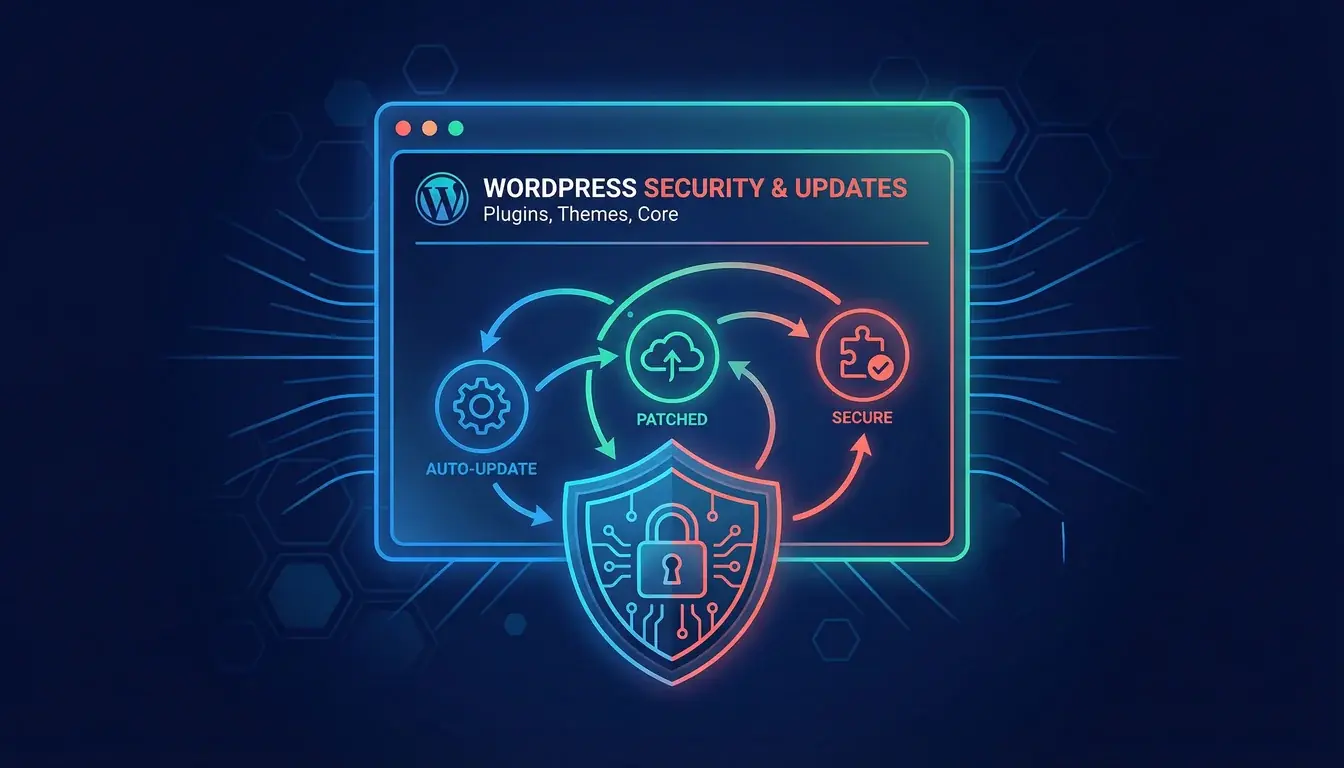
1. Keep Core, Themes, and Plugins Updated
The most important item on the list, and the most neglected. Patchstack found that 33% of disclosed vulnerabilities aren't patched in time for public disclosure, and half of all critical flaws are exploited within 24 hours of going public. The window between "vulnerability announced" and "your site compromised" can be measured in hours, not weeks. That window is shrinking further as AI models discover thousands of zero-days that human researchers missed for decades.
Enable auto-updates for WordPress core (minor versions). Review plugins and themes weekly and apply every pending update. If a plugin hasn't been updated by its developer for 12+ months, delete it and find an alternative. Patchstack removed 1,614 abandoned plugins from the WordPress repository in 2024 alone. Major core releases are the moment of truth for your plugin stack: the gap between plugins that ship same-day compatibility for something like the upcoming WordPress 7 release and ones that lag is usually the gap between actively-maintained and quietly abandoned.
"96% of the vulnerabilities were uncovered in plugins, and 4% were found in themes."
Patchstack, State of WordPress Security 2025
2. Strong Passwords and Two-Factor Authentication
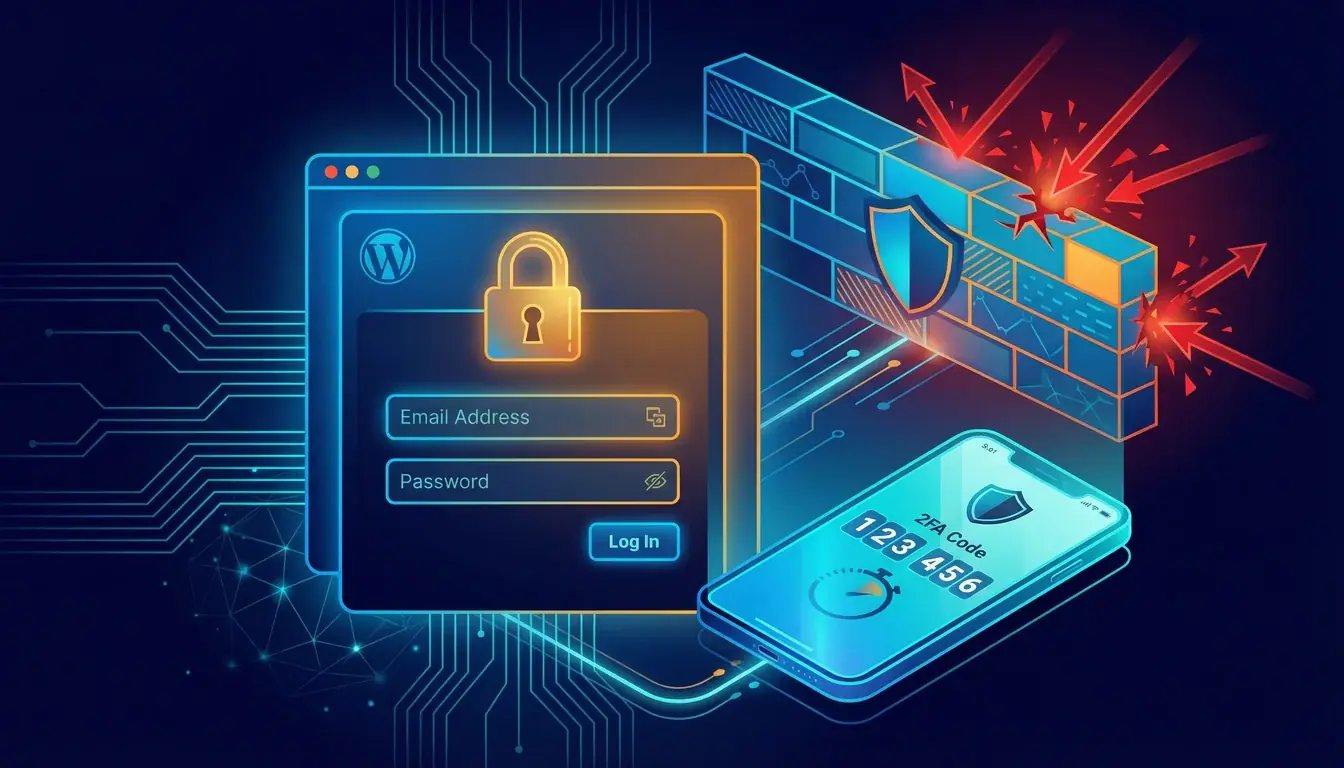
Wordfence reported blocking 55 billion password attack attempts in 2024. That's 65 million brute-force attempts against WordPress sites every day. Weak or reused admin passwords are a question of when, not if.
Two things end this attack vector almost entirely: a unique long password from a password manager (Bitwarden, 1Password, or your browser's built-in one), and two-factor authentication on every admin account. The UK's NCSC puts it plainly:
"If you're given the option to use 2-step verification (also known as 2SV) for any of your accounts, you should do; it adds a large amount of security for not much extra effort."
NCSC, Small Business Guide: Using Passwords
Five extra seconds at login. That's the entire cost. Every WordPress security plugin worth installing makes 2FA a one-tick setup.
3. Security Plugin and Web Application Firewall
Pick one of Wordfence, Solid Security, or Sucuri and configure it properly. Don't run two in parallel; they fight each other. Make sure it includes a WAF, which blocks known attack patterns before they reach your code. Server-level WAFs from your host are even better because the bad traffic never touches PHP.
4. Daily Off-Site Backups
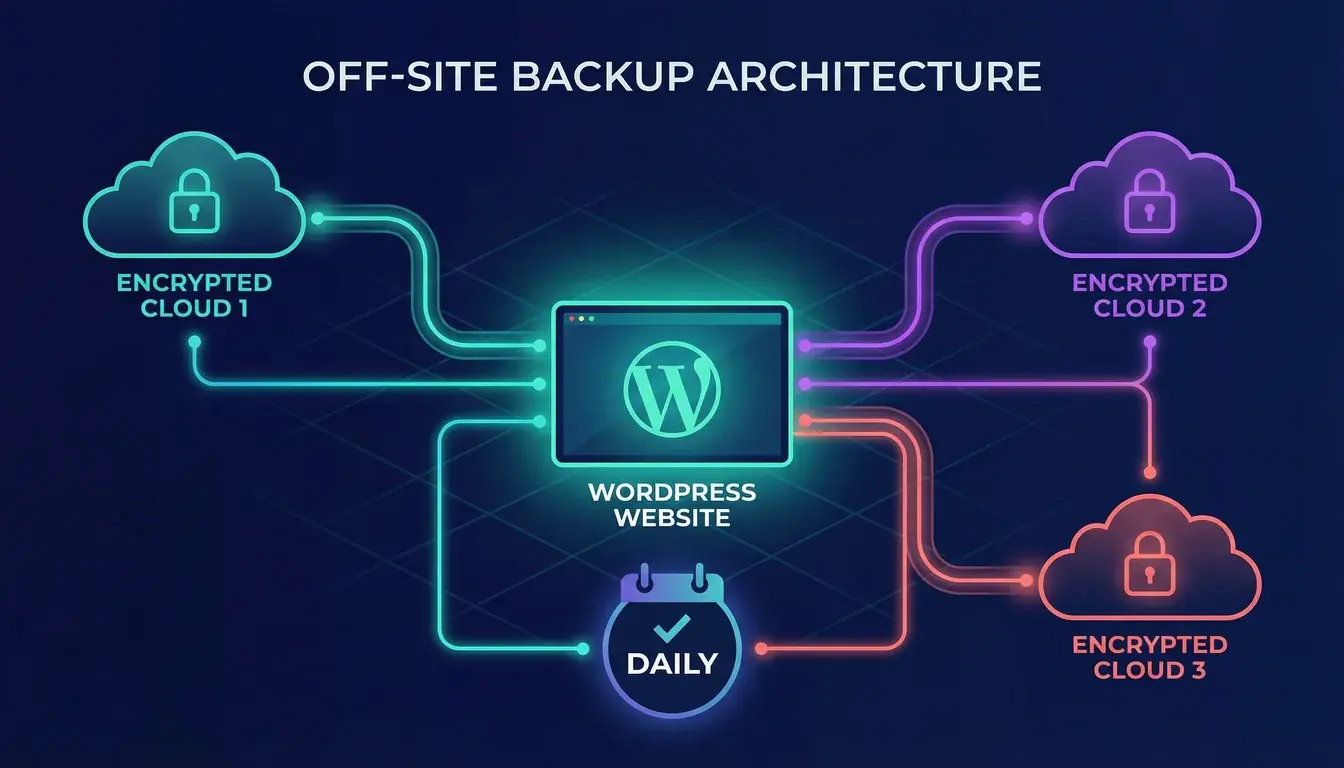
The single thing that turns a disaster into an inconvenience. Three rules:
- Daily, automated, off-site. Don't rely on your host's own backups as your only copy.
- Test the restore. An untested backup is a theory. Restore to a staging site at least quarterly.
- Keep history. If malware creeps in on Monday and you notice on Friday, you need to roll back further than yesterday.
UpdraftPlus, BlogVault, and BackWPup all do the job. Our maintenance plans handle it automatically with backups stored on infrastructure separate from the live site.
5. Limit Logins and Move /wp-admin
By default WordPress lets anyone hammer /wp-login.php indefinitely. Turn on login attempt limiting in your security plugin (five failed attempts, hour-long lockout) and the brute force problem mostly disappears. Changing the login URL from /wp-admin to something custom doesn't stop a determined attacker, but it eliminates 90% of bot traffic that's just scanning for the default path.
6. Managed WordPress Hosting
Cheap shared hosting gets you a site online but skips the things that matter most: server-level firewalls, malware scanning, isolated containers, automatic core updates, staging environments. 365i's WordPress hosting includes all of those by default. If you're on a £3-a-month shared host, fixing the hosting layer will do more for your security than any plugin will. The same hosting affects performance, which we cover in our WordPress speed optimisation guide.
7. Harden wp-config.php
Three quick wins:
- Disable dashboard file editing. Add
define('DISALLOW_FILE_EDIT', true);to wp-config.php. Stops attackers with admin access from injecting code through the editor. - Correct file permissions. Files 644, directories 755, wp-config.php 600 or 640.
- Protect wp-config.php directly. Move it above the document root, or deny direct access in
.htaccess.
8. HTTPS Everywhere
If your site isn't on HTTPS in 2026, fix that today. Let's Encrypt is free, most hosts auto-provision certificates, and Chrome flags HTTP sites as "Not Secure". Watch out for mixed content (HTTPS pages loading HTTP assets), which breaks the trust chain. 365i's HTTPS Inspector scans any page for these issues for free.
9. Audit User Accounts
Every admin account is an attack surface. Log in monthly and review every user. Delete anyone who doesn't need access. Downgrade permissions where Editor or Author would do. And if your username is still "admin", create a new admin with a unique username, log in as that, then delete the old one. Default usernames are the first thing bots try.
10. Scan Your Site Regularly
Everything above is preventative. Scanning catches what slipped through. Your security plugin should run a weekly malware scan automatically. On top of that, run an outside-in scan at least quarterly with a tool that doesn't live inside WordPress itself.
365i's WordPress Scanner handles this. It runs eight checks: login protection, XML-RPC status, user enumeration via the REST API, version leaks, default file exposure, PHP debug mode, missing security headers, and outdated plugin detection. You get a letter grade and a list of fixes. Run it after any major change and treat any grade drop as a same-day investigation. We walk through what each check actually tests and how to fix every finding in our guide to the free WordPress Scanner.
If You Get Hacked
Even with every box ticked, a zero-day can get through. The playbook:
- Take the site offline. A maintenance page is better than spreading malware to visitors.
- Change every password. Admin, hosting, database, FTP, third-party services.
- Restore from a clean backup. From before the compromise, not after.
- Scan and remove remaining malware. Dedicated tool or call in a specialist.
- Find how they got in. Otherwise you'll be back here next week.
- Report personal data breaches to the ICO within 72 hours. Legal requirement under UK GDPR.
If this list feels overwhelming, that's a reasonable reaction. It's also the point at which calling in professional help pays for itself many times over. Cleanup costs more than prevention. Always.
Frequently Asked Questions
How often should I update WordPress plugins and themes?
Weekly at minimum. Security patches for critical vulnerabilities sometimes drop days apart, and attackers start exploiting them within hours of public disclosure. Enable automatic updates for minor WordPress core versions, and manually review plugin updates once a week.
Is WordPress actually secure?
WordPress core is secure and well-maintained. The security problems come from plugins and themes, which account for 100% of reported vulnerabilities in the ecosystem. A properly maintained WordPress site is as secure as any other modern CMS. A neglected one is a target.
What is the best WordPress security plugin in 2026?
Wordfence, Solid Security, and Sucuri are the three most widely trusted options. For most small businesses, Wordfence's free tier is enough to cover the essentials. The important thing is to pick one and configure it properly, not which specific plugin you choose.
How do I know if my WordPress site has been hacked?
Signs include unexpected admin users, slow site performance, strange files in your WordPress directories, spam content appearing on pages you didn't create, browser warnings when visiting the site, and drops in search traffic from Google's Safe Browsing flags. Run a scan with a security plugin and use 365i's WordPress Scanner for an outside-in check.
Do I really need security if my site is small and unknown?
Yes. Almost all WordPress attacks are automated. Bots don't care how small you are; they scan the entire internet for vulnerable sites and compromise whatever they can. "Nobody would bother with me" isn't a security strategy, it's wishful thinking.
How much should a small business budget for WordPress security?
The basics cost nothing beyond your time: free security plugins, free backup tools, and a managed WordPress host that includes server-level protection. Budget around £20 to £50 per month for proper managed hosting, and consider a maintenance plan if you'd rather outsource the ongoing work entirely.
Should I disable XML-RPC on my WordPress site?
Yes, unless you're actively using it. XML-RPC is a legacy feature that attackers abuse for brute-force attacks (thousands of login attempts in a single request) and amplified DDoS attacks. Most modern WordPress workflows don't need it. Any decent security plugin has a one-click disable option.
Can I audit my WordPress site's security myself?
Yes, and you should run basic audits regularly. Start with a free scan from 365i's WordPress Scanner, which gives you a letter grade and specific issues to fix. Follow that up with your security plugin's own scan, check your user accounts, and review your plugin list for anything untouched for more than a year.
Don't Have Time to Manage Security Yourself?
Our Support & Maintenance plans handle WordPress updates, security monitoring, daily backups, and malware scanning so you can focus on running your business instead of worrying about your website.
See Support PlansPublished: 5 March 2026 · Last reviewed: 14 April 2026 · Written by: Mark McNeece, Founder & Lead Developer, Press Forge
Editorially reviewed by: Mark McNeece on 14 April 2026 · Our editorial standards


